Turning your smartphone into a voice-controlled workout log is one of the easiest upgrades you can make to your home gym. Instead of stopping after every set to type numbers into an app or scribble on paper, you can simply talk to your phone and capture sets, reps and weight without breaking your flow. In this guide, you will learn how to use built-in voice dictation on iOS and Android, how to structure your spoken notes so they stay readable, and how to combine dictation with basic templates for fast, hands-free tracking.
Why use voice dictation for home workouts
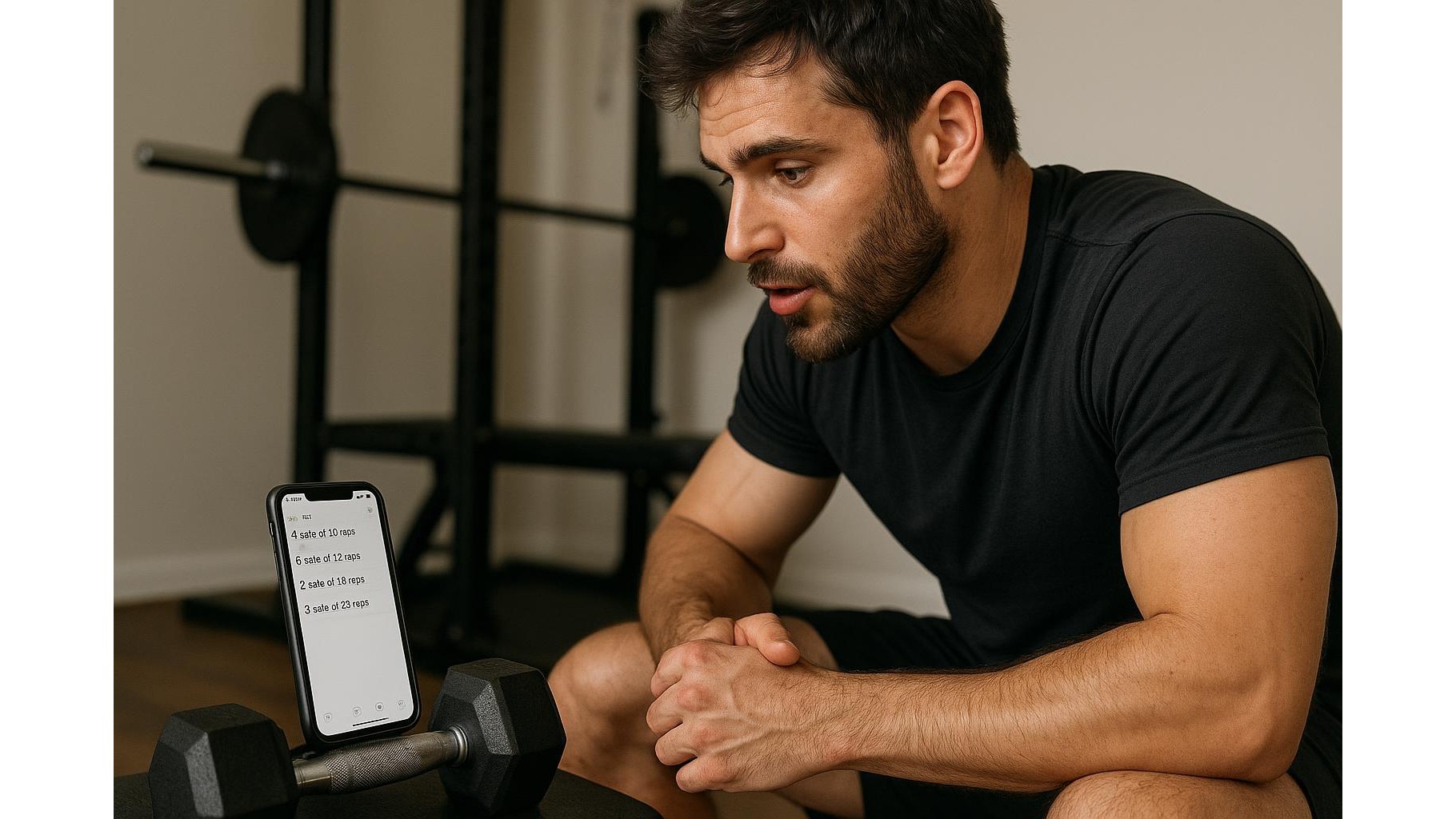
When you train at home, you often juggle equipment, timers and maybe a small space. Grabbing your phone with sweaty hands to type out training logs is awkward, slow and sometimes unsafe. Using voice dictation lets you log your last set in a few seconds: “Bench press, set two, eight reps, 40 kilos” and you are ready for the next set. This helps you maintain focus, reduce distractions and keep your heart rate up between sets. It is also ideal if you train early or late and do not want to turn on bright lights to write or if you wear gloves, wrist straps or chalk that make typing annoying.
Setting up voice dictation on iOS and Android
Modern smartphones already include powerful speech-to-text tools. On iOS, go to Settings > General > Keyboard and enable Dictation. When you open your notes app, tap the microphone icon on the keyboard, speak your set data, then tap again to stop. On Android, make sure Google Voice Typing is enabled under System > Languages & input. In any text field, tap the microphone icon and start speaking. For the best recognition, keep the phone reasonably close, speak clearly and avoid background music that is too loud. You can use any app that accepts text input: a basic notes app, a spreadsheet app or a dedicated workout logging app that supports dictation.
Designing a simple spoken logging format
The secret to useful voice-controlled logging is a consistent structure. Decide on a short phrase that you will always use, for example: “Exercise name, set number, reps, load”. A typical entry might be: “Squat, set one, ten reps, 60 kilos; set two, ten reps, 60 kilos.” Over time, this will create a clear, scannable history of your home training sessions. You can also include RPE or notes such as “easy”, “close to failure” or “back pain” to capture how each set felt. If your dictation sometimes mishears numbers, exaggerate the clarity of digits (e.g. “six-zero kilos” instead of “sixty kilos”) and quickly correct any major mistakes during rest periods.
Using templates and checklists for faster dictation
To speed things up, create workout templates inside your notes app. At the top of each page, type your session plan as a checklist or bullet list, leaving space to dictate results under each movement. For example: “Bench press – 3 sets; Dumbbell row – 3 sets; Split squat – 3 sets.” During the workout, you simply tap the line under each exercise name, start dictation and say your standard phrase. You can also pre-create recurring templates for upper body, lower body or full-body sessions and duplicate them. This combination of structured text and hands-free dictation turns your phone into a reliable logbook without any complicated apps or subscriptions.
Combining voice logging with data review and progression
Voice dictation is not just about convenience during the workout; it also supports better progress tracking. At the end of the week, quickly scan your dictated notes and highlight key lifts, personal bests or missed targets. You can copy your best sets into a simple spreadsheet for longer-term tracking of volume and intensity, or just keep everything inside your notes app and tag each page with the week number. If you notice that dictation errors frequently affect specific words, adjust your spoken format or add clarifying phrases. Over time, your voice-controlled workout log becomes a rich record of what actually happens in your home gym, making it easier to choose smart progressions.
Practical tips to make voice dictation a habit
To embed this system into your routine, treat it like any other piece of home workout equipment: you need repetition and consistency. Keep your phone on a stable surface near your training area, with the notes app already open before you start. Use a short verbal cue at the end of each set, such as “log it”, to remind yourself to dictate. If you train with a partner, agree on who logs each set to avoid confusion. Finally, be realistic: voice dictation will not be perfect, but even slightly messy text is far better than no record at all. Within a few sessions, you will find that hands-free logging becomes automatic, helping you capture every set, rep and load without breaking your rhythm.
Using phone dictation as a hands-free workout log is a simple, low-friction way to upgrade your home training. By enabling built-in voice recognition, choosing a clear spoken format, preparing basic templates and reviewing your data weekly, you turn your smartphone into a powerful training partner. You stay more focused, adjust your programming based on real numbers and remove one of the biggest excuses for not tracking: the hassle of writing everything down.