Working out in a compact home gym means every centimetre of floor and screen space counts. Learning how to use split-screen and picture-in-picture on your phone or tablet lets you follow coaching videos, track rest timers, and keep notes all at once without juggling devices. This guide walks you through practical setups that turn a single screen into a powerful multi-tool for more focused, efficient training sessions.
Why split-screen matters in a small home gym
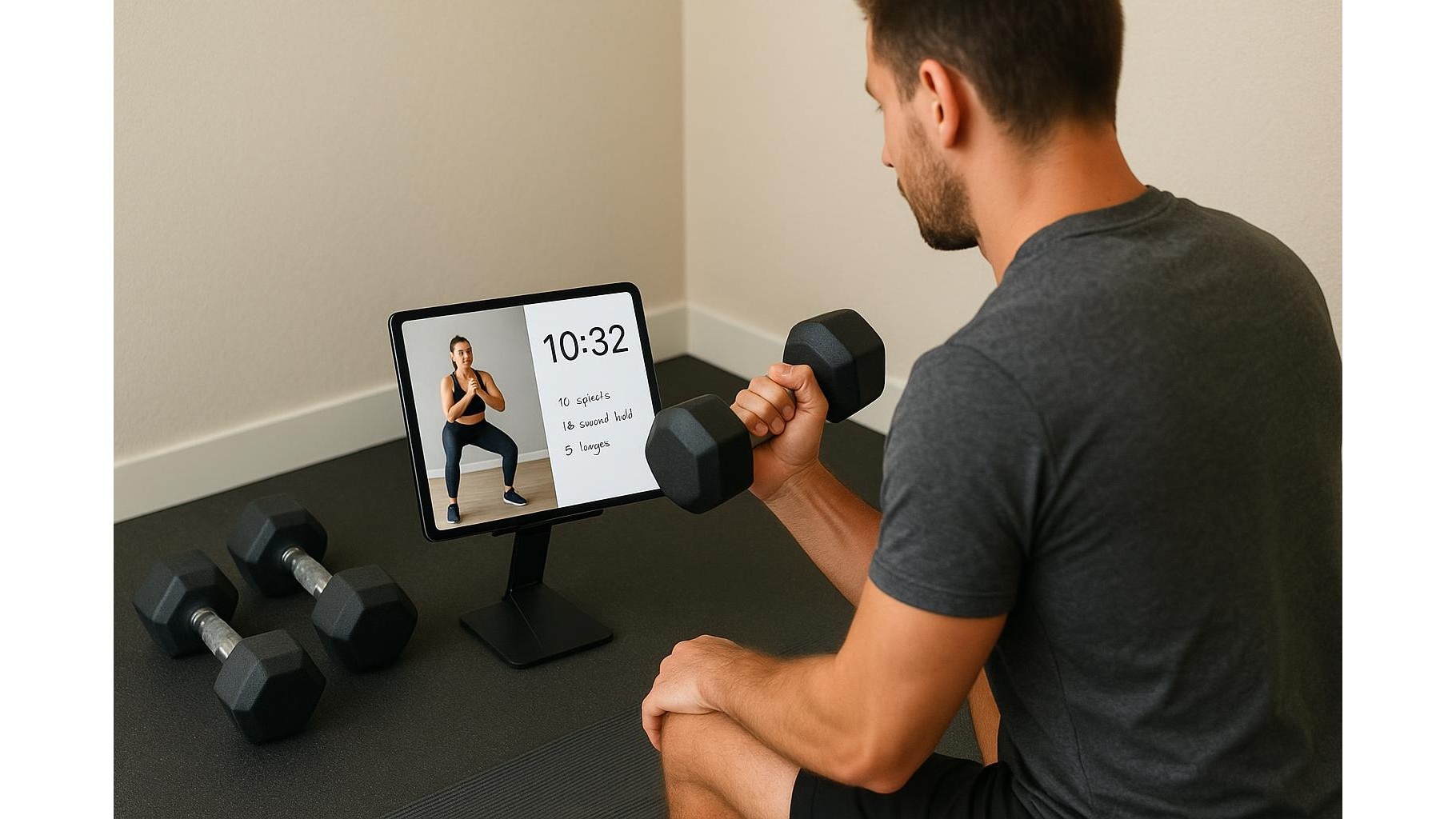
In a tight training corner, you rarely have room for a laptop, a whiteboard, and a big TV. Using your phone or tablet in split-screen mode solves this by letting you run a workout timer, a coaching video, and a notes app together. For example, you can watch a technique breakdown on one half of the screen while a countdown tracks your rest on the other. This reduces distractions, keeps everything at eye level, and helps you stick to structured sets, rest periods, and progression tracking without constantly switching apps.
Setting up split-screen on Android phones and tablets
Most modern Android devices support split-screen multitasking, which is ideal for small home gyms. Open your main app first (for example, YouTube for coaching). Then open the recent apps view and tap the app’s icon at the top, selecting “Split screen” or “Open in split screen view”. Next, choose your second app, such as a tabata timer or notes. You can drag the divider to give more space to the video or the timer, depending on the phase of your workout. For cardio intervals, you might prioritise the countdown; for learning a new lift, you might give more room to the coaching clip while still seeing your timer in the corner. Experiment until you find a layout that feels natural mid-set.
Using split view and Slide Over on iPadOS
On an iPad, Split View and Slide Over are perfect for multi-tasking in a home gym. Start by opening your coaching app or video in Safari or YouTube. Swipe up slightly to reveal the Dock, then drag a compatible app like a timer or notes to the side of the screen until it snaps into place. This creates a true side-by-side split view. Alternatively, you can use Slide Over to float a narrow app window (like a rest timer) on top of a full-screen video. With this setup, you can keep your main exercise demo large while your timer hovers where you can see it between sets, making it easy to stay on pace without losing sight of your form cues.
Picture-in-picture for coaching videos and timers
Picture-in-picture (PiP) is particularly useful when you want one app to stay visible while you quickly interact with others. On many Android devices and iPads, compatible video apps let you tap a PiP button so the video shrinks into a small floating window. You can then open a timer app, training log, or playlist controls in the background. In a small home gym, this means your coach’s demo or form check remains in the corner of the screen even as you adjust your rest intervals or jot down weights. Keeping the video always visible is especially helpful for complex movements, where you want to double-check technique between reps without restarting the clip.
Optimising your layout and workflow in tight spaces
The key to using split-screen effectively is planning your workflow around your training style. Strength athletes might pair a coaching video with a simple countdown timer and a notes app for logging sets and loads. HIIT or circuit enthusiasts can run a tabata timer alongside exercise demos and quick access to music controls. Use a stable stand or mount to keep the screen at eye level and avoid neck strain, and lock your screen orientation so the layout doesn’t shift mid-set. Once you find a consistent app combination and layout, you can replicate it at the start of each session, turning your phone or tablet into a reliable, repeatable command centre for your home workouts.
By mastering split-screen and picture-in-picture on your phone or tablet, you maximise the value of a single device in a small home gym. With coaching videos, timers, notes, and music all accessible at a glance, you reduce friction between sets and stay more engaged in your training. Take a few minutes to experiment with layouts on your device before your next session, and you’ll quickly find a configuration that keeps you organised, on time, and fully focused on progressing your home workouts.