Home workouts generate a useful record of exercises, sets, repetitions, weights, duration and progress. But that history may be tied to one app or device, and a lost phone, account change or discontinued service can make it harder to access. Exporting your records gives you a copy you can store, review and, where supported, move to another platform. A reliable backup starts with understanding what the app can export and checking that the resulting file is genuinely usable.
Find the export and account tools
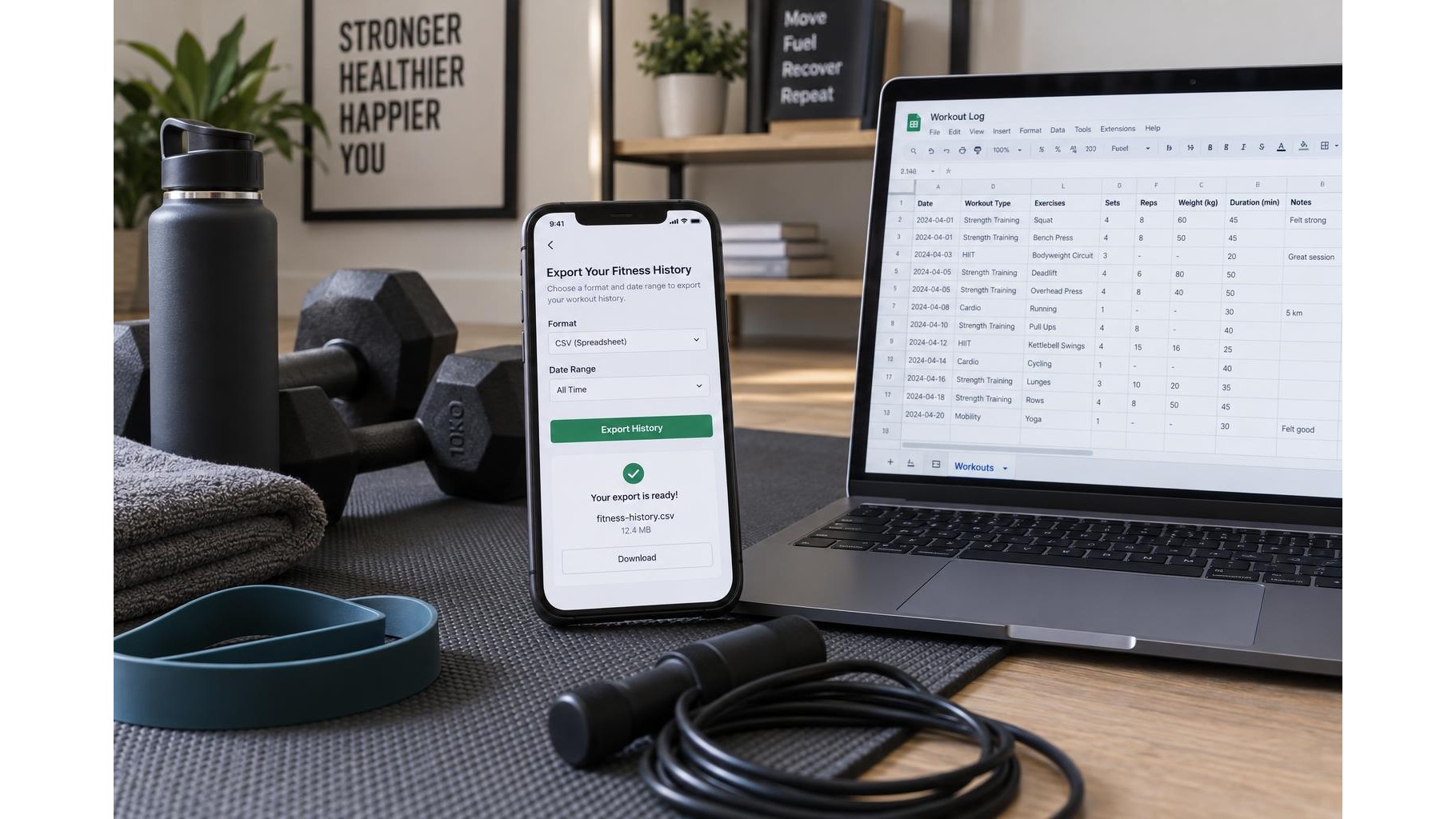
Start by opening the app’s profile, settings, privacy or account section and looking for options such as Export data, Download your information or Request a copy. Some services provide an immediate download; others email a link after processing your request. Check the app’s help pages if the setting is not obvious. Before starting, confirm that your account email is current and that you can sign in on another device. If you use a web dashboard as well as a phone app, check both: the export feature may only be available in one place.
Check what the file actually contains
Do not assume that an export includes every detail displayed in the app. It may contain workout dates, exercise names, set and repetition counts, recorded loads, notes, duration or heart-rate data, while leaving out photos, coaching plans, exercise demonstrations or deleted sessions. Look for the stated file format, commonly CSV, JSON or a ZIP archive containing several files. After downloading, open a copy and inspect a few recent and older sessions. Confirm that dates, units, exercise labels and values are readable, and check whether your home equipment or custom exercises appear correctly.
Make a dependable backup
Save the original export without editing it, then create a second copy in a separate location. For example, keep one in a secure cloud storage account and another on an encrypted computer or external drive. Use a clear filename that identifies the app and export date, such as “Workout-history-2025-03-01”. If the export arrives as a ZIP file, retain the archive and, if useful, store an extracted working copy beside it. Set a recurring reminder to export again—monthly or quarterly is a practical starting point—and create an extra backup before changing phones, closing an account or switching apps.
Protect personal and health information
Workout records can reveal routines, schedules, locations or health-related measurements. Treat exports as personal data: use strong account passwords, enable two-factor authentication where available and avoid public or shared computers. Check who can access any cloud folder you use, and remove old sharing links. If you email a file to yourself, consider whether the account and device are secure. Before uploading data to a new fitness platform, review its privacy settings and terms, and import only information you are comfortable sharing. Delete temporary downloads from devices you no longer control.
Keep the history easy to review
A backup is most valuable when you can find and interpret it later. Keep a simple index with export dates, file names and the app or account each export came from. For a spreadsheet-based CSV, preserve the original and use a separate copy to sort by date, exercise or training block. Avoid changing column names in the archival file, since another service may rely on them during import. If you move platforms, test with a small sample first and compare the imported sessions with the original. Note any missing fields or unit conversions so future progress comparisons remain fair.
Build a routine you can maintain
Exporting is not a one-time task: app features, subscriptions and file formats can change. Schedule regular downloads, verify that each backup opens, and keep copies in more than one secure place. A small, organised archive can preserve your training history across devices and make long-term review much easier. Check the app’s export options today, inspect one file and choose a repeatable backup routine that fits your privacy needs.