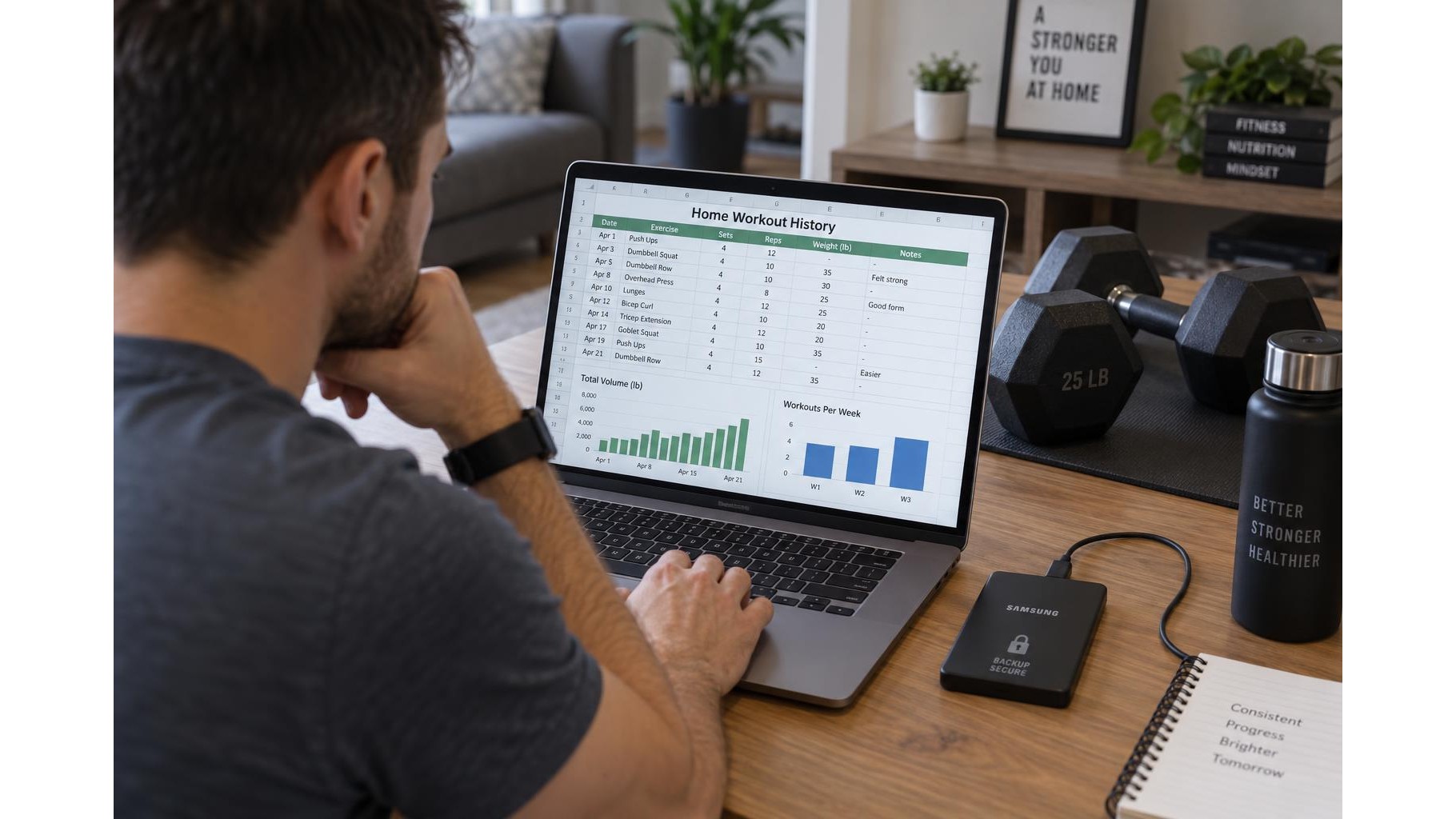
Your workout history is more than a list of sessions: it can show how your strength, consistency and training volume change over time. But if your records live in just one fitness app, a lost account, discontinued service or accidental deletion could make them hard to recover. Exporting your data periodically gives you a backup you control and makes it easier to move your records elsewhere. Here’s how to choose a useful format, check that the export is complete and keep a copy you can actually read.
Find the export option and choose a format
Look in the app’s account, privacy, data management or settings area for options such as Export data, Download your information or Request a copy. Some services prepare a download immediately; others email a link after processing. Common formats include CSV, a table of values that opens in spreadsheet software, and JSON, a structured format often used to transfer information between apps. You may also receive a ZIP archive containing several files. If there is a choice, CSV is usually convenient for reviewing sessions, while JSON may preserve more detail, such as exercise metadata or nested records. Check the app’s help pages to see exactly what each export includes.
Set and verify the date range
Before exporting, check whether the app offers an all-time download or lets you specify a date range. For a first backup, choose the broadest available range. For recurring backups, record the dates covered so you can tell where one file ends and the next begins. Open the export and inspect its earliest and latest workout dates; don’t assume the selected range was applied as expected. Check the number of sessions against the app’s history, and look for missing months, duplicate entries or time-zone shifts that move a late-night workout to the previous or following day. If anything looks incomplete, try another export or contact the app’s support team.
Keep both a readable copy and an original
Save the downloaded archive unchanged as your original backup, then keep a separate working copy for browsing or editing. Open CSV files in a spreadsheet and confirm that columns such as date, exercise, sets, repetitions, duration and notes appear in separate fields. A JSON file can be less approachable, so retain it even if you also make a readable table or PDF summary. Use clear filenames, for example workouts_2025-01_to_2025-12, and include the app name when helpful. Store the files in a private, backed-up location, such as an encrypted drive or secure cloud folder, rather than leaving the only copy in your downloads folder.
Protect personal information
Workout exports can reveal more than training details. They may include your name, email address, body measurements, health notes, location data or device identifiers. Before sharing a file or uploading it to another service, open it and remove fields you don’t need. Use a strong password and device encryption, and restrict access to any cloud folder containing the backup. Be cautious with public spreadsheet links and third-party conversion websites. If you no longer need an old export, delete it from both your device and any synced locations, including the recycle bin where possible.
Move records without depending on one app
To transfer history, check whether the destination app supports direct imports from your current service or accepts CSV, TCX, GPX or JSON files. These formats are not interchangeable: CSV often suits exercise logs, while TCX or GPX is more common for GPS-based activities. Import a small test file first, then compare dates, activity names and key measurements before moving everything. Keep the original export in case the import changes or omits fields. For a durable record, maintain a simple, readable spreadsheet alongside the raw files and refresh it on a regular schedule.
Make your workout history portable
A dependable backup combines a complete export, a verified date range, an untouched original and a readable copy. Protect personal details, test imports before switching services and keep more than one secure copy. A short routine—export, inspect, label and store—helps preserve your home workout history even if your preferred fitness app changes.