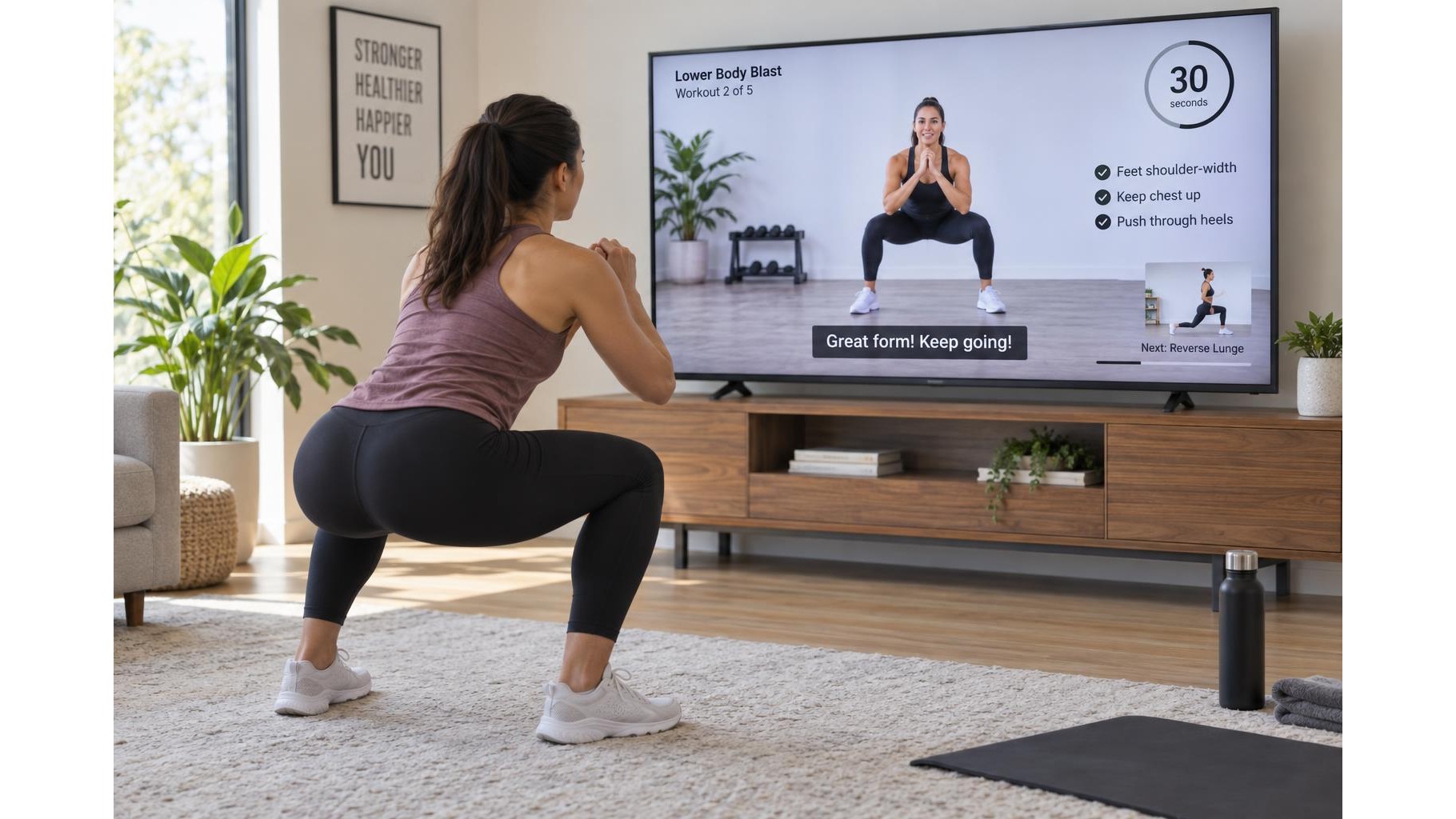
Following a workout on a television can be harder than it looks: spoken instructions may be drowned out by music, small on-screen text can disappear across the room, and navigating menus between sets can interrupt your rhythm. A smart TV’s accessibility features can make video-led training easier to follow. With a few adjustments to captions, audio, display size and voice controls, you can make coaching cues clearer while keeping your attention on safe movement.
Turn captions into a useful coaching aid
Enable closed captions or subtitles in the TV’s accessibility settings, then check whether your workout app or streaming service has its own caption controls. The two settings may be separate. Choose a size and contrast that remain readable from your exercise position, and test them while standing or lying where you will train. Captions can help with rep counts, timing and technique reminders, especially when the instructor speaks over music. If text covers the movement demonstration, try a smaller size or a less obstructive screen position. Keep the display uncluttered: captions should support the coach, not compete with the action.
Use audio description when visual detail matters
Audio description adds narration about important on-screen actions, which can help explain demonstrations and transitions. Availability varies by programme, app and region, so look for an audio or language option during playback and confirm that the selected track is actually descriptive. It can be especially useful when an instructor’s movements are difficult to see clearly on your screen. However, extra narration may overlap with coaching instructions or music. Preview a short section before exercising, adjust volume, and switch tracks if the added commentary makes cues harder to distinguish. For safety-critical form guidance, use a workout with clear spoken instruction rather than relying on description alone.
Magnify text without losing the demonstration
Screen magnification and text-size settings can make menus, schedules and workout details easier to read. Find them under Accessibility, Display or Vision; names and availability differ between TV brands. Test magnification before starting a session, because enlarging the whole picture may crop the instructor or hide timers and rep counters. If possible, enlarge text only, use the app’s own zoom or move closer to read setup details, then restore the normal view for exercise. A clear, stable picture matters: position the TV where you can see it without twisting your neck or changing your form to read a cue.
Set up voice controls before you start moving
Voice control can help you pause, resume, adjust volume or search for a class without handling a remote with sweaty hands. Check whether commands come from the TV, a voice assistant or the workout app, and review the phrases it recognises. Try them from your usual workout spot, at the volume you expect to use. Background music, fans and distance can affect recognition. Keep the remote or a physical pause button within reach as a reliable backup, and avoid commands that might open unrelated content. Do not depend on voice commands to stop equipment or prevent a fall; pause safely first, then speak.
Make a quick pre-workout accessibility check
Before pressing play, confirm that captions are legible, the chosen audio track is clear, the display is at a useful size and voice commands respond as expected. Check that the TV is stable, the screen is not obscured by equipment, and cables and remotes are outside your movement area. Run a short test during a warm-up rather than changing settings in the middle of a challenging set. If an accessibility feature adds clutter or distraction, adjust or disable it. The best setup is the one that makes instructions easy to follow while leaving enough visual and physical space to exercise safely.
Clearer cues, safer sessions
Smart TV accessibility tools can turn a hard-to-follow workout into a more comfortable, self-directed session. Use captions for spoken cues, audio description for relevant visual context, magnification for small text and voice controls for simple hands-free navigation. Since options vary across TVs and apps, test each feature in your actual training space and keep a straightforward backup control nearby. A few thoughtful setup checks help you stay focused on the coach, your movement and the space around you.