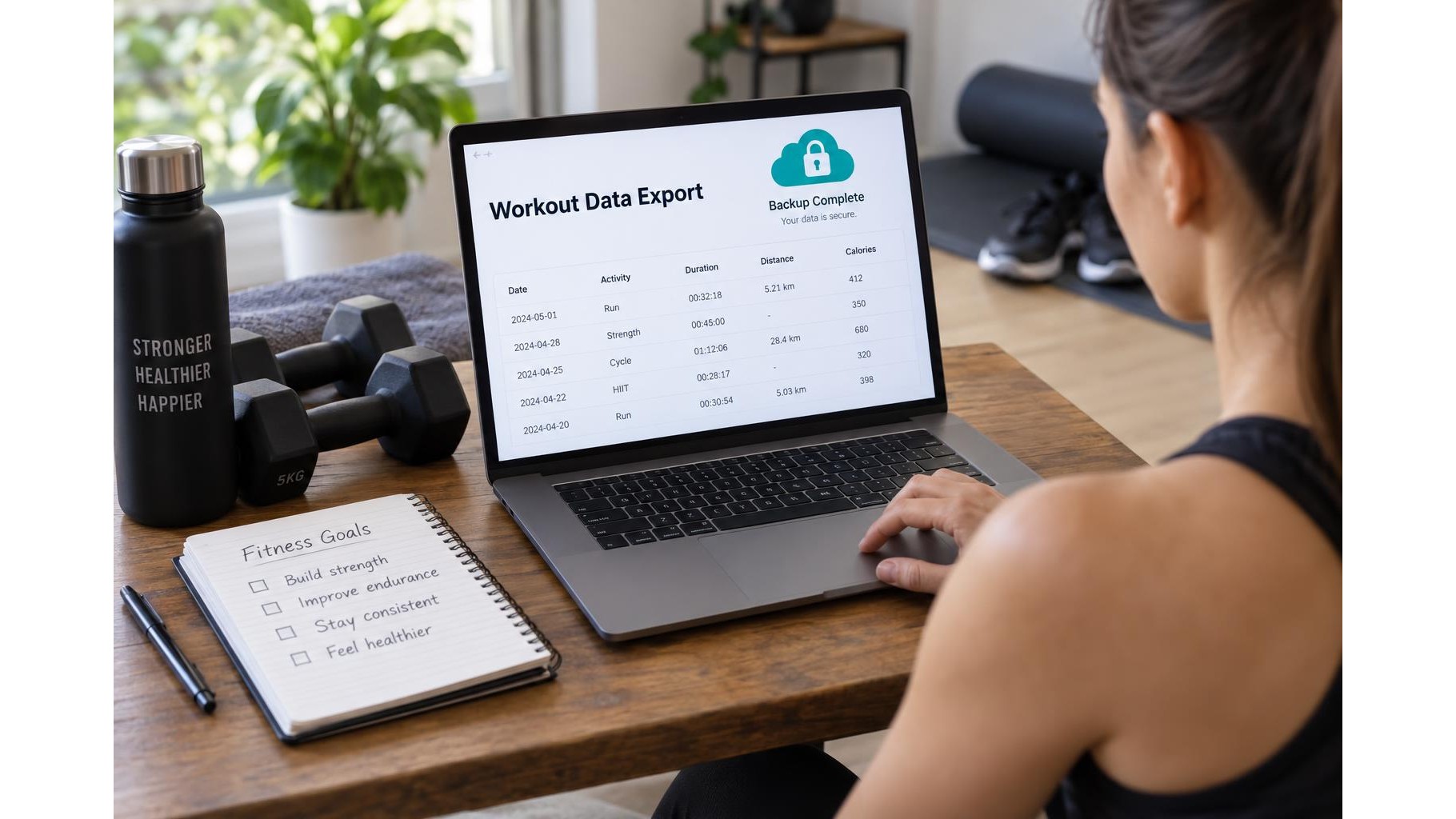
Your home workout history is more than a list of sessions: it can show how your strength, consistency and measurements have changed over time. A backup protects that record if you lose access to an account, change phones or move to another fitness app. With a little preparation, you can export your data, keep it in a practical format and check that it remains useful outside the original app.
Find the export options
Start in the app’s settings, account page or help centre and look for Export data, Download your information or a similar option. Some services email a download link; others create an archive you can save directly. Check whether the export includes your full history or only a selected date range, and whether it covers workout logs, body measurements, notes and exercise names. If the app offers separate exports, download each relevant category. Keep the original files unchanged, and note the export date so you know how current the backup is.
Choose a format you can reuse
For most workout logs, CSV is a practical choice: it opens in spreadsheet programs and can often be imported into another service. Check that each row represents a session or exercise entry and that columns clearly label dates, movements, sets, repetitions, load, duration and units. JSON can preserve more structured information, such as nested sets or app-specific fields, but may be less convenient to inspect without a suitable viewer. A PDF is useful as a readable snapshot, but is usually harder to edit or import. When available, save the structured export as well as a human-readable copy.
Store backups securely
Save a copy somewhere separate from the device running your fitness app. A sensible approach is one copy in a reputable cloud account and another on a computer or external storage device. Use a strong, unique password and enable two-factor authentication on cloud services. Workout records may include personal details, health-related measurements or location data, so avoid public links and shared folders. If an archive is unencrypted, consider placing it in an encrypted container before uploading or transferring it. Keep access details safe, and periodically confirm that you can still open the files.
Check dates, exercises and measurements
Before relying on an export, open it and inspect several entries from different dates. Confirm that dates appear in the expected order and that the day and month have not been swapped by regional settings. Look for time-zone changes that might shift a late-night session to the previous or next day. Compare exercise names with the app: abbreviations, renamed movements and custom exercises should still be identifiable. Verify that weights, distances and body measurements include units, such as kilograms, pounds or centimetres. Check decimal separators too; a value such as 12.5 should not be misread as 125.
Test the handover to another app
If you are switching platforms, use a small test import first when possible. Import a few sessions and compare the new app’s totals and records with the original export. Confirm that sets, repetitions, rest details and measurement dates have landed in the right fields. Some services cannot map custom exercises or notes automatically, so preserve the original export even after migration. If importing is unavailable, keep a spreadsheet copy with clear column headings and consistent units. A brief data dictionary explaining unusual abbreviations can make older entries understandable years later.
Keep your training record accessible
Make exporting part of your routine: create a fresh backup after major training blocks or at regular intervals, and label files with the app name and export date. Keep the untouched original alongside any cleaned or converted versions. Review the backup occasionally on a different device to catch damaged files or access problems early. A secure, readable copy gives you a dependable record of your progress and makes changing apps less stressful.