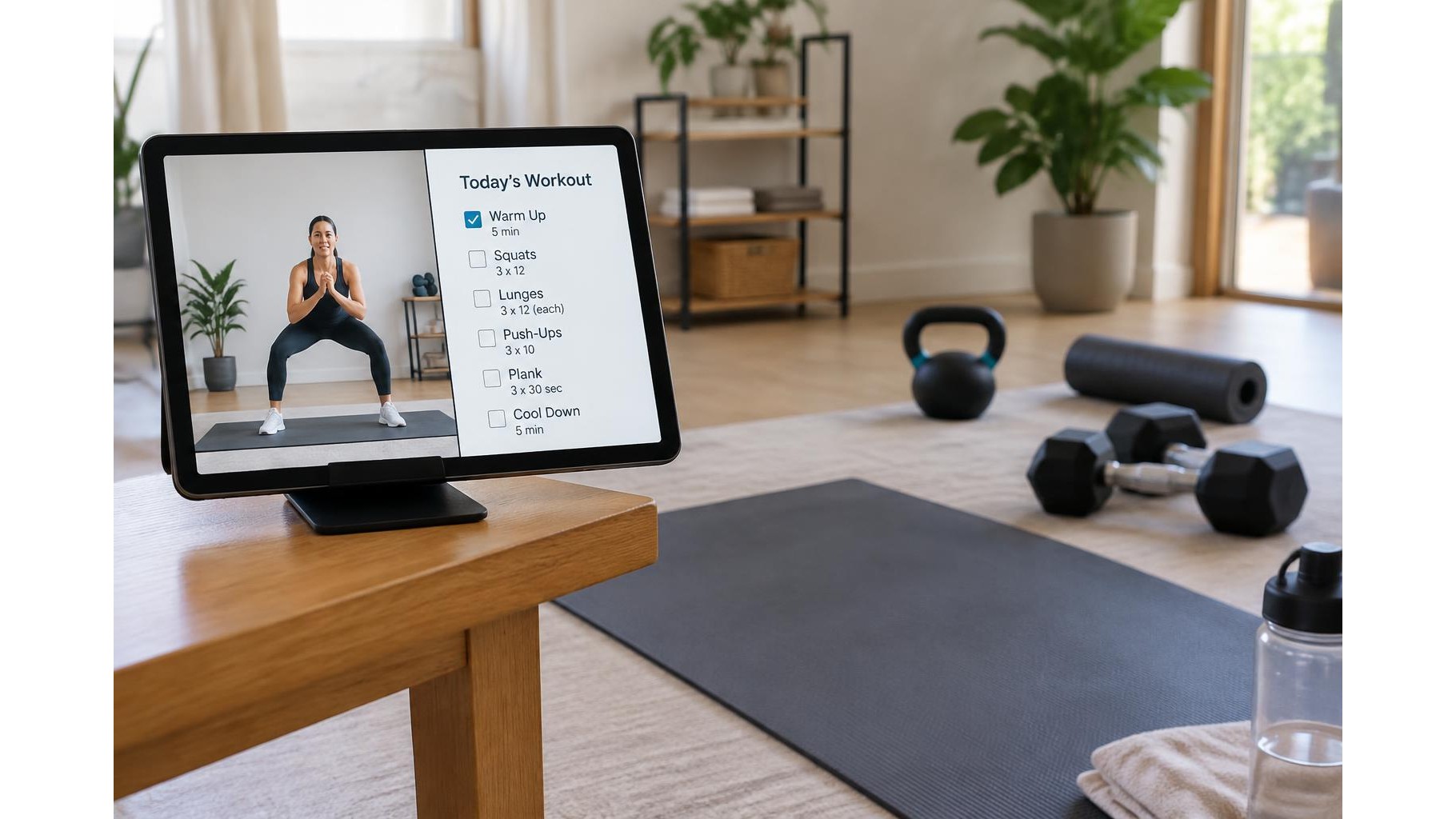
A tablet can do more than play a workout: with split-screen mode, it can show an exercise video and your training notes at the same time. This setup makes it easier to follow a routine, check sets and repetitions, and record progress without repeatedly switching apps. A few display adjustments and a carefully chosen position can also help keep the device visible without placing it in the way of your movements.
Check that both apps work in split-screen
Before starting, confirm that your tablet and the apps you want to use support split-screen or multitasking. Open the workout video, then use the tablet’s app switcher or multitasking menu to add your notes app beside it. The precise gesture varies by operating system and model, so consult the device’s settings or help guide if the option is not obvious. If the video app does not allow this mode, try playing the workout in a browser while keeping notes open in a separate app.
Choose a useful side-by-side layout
Drag the divider between the two windows to give the video enough space to follow demonstrations clearly. The notes panel usually needs less room: a third of the display may be sufficient for a short workout plan. For exercises where body position matters, prioritise the video and keep notes concise. A simple list of movements, target repetitions, rest periods and a space for actual results is easier to scan than long paragraphs. Test the layout before exercising and check that essential video controls remain accessible.
Make notes readable at a glance
Increase text size if you cannot read your plan from the position where you will exercise. Use short lines, clear headings and high-contrast text, and avoid filling the screen with unnecessary details. You might prepare a routine such as “squats — 3 sets × 10 reps” and leave room to record completed sets. If your notes app supports checkboxes, use them to track progress without typing during a session. Keep the screen awake for the duration of the workout, but choose a timeout that does not leave the tablet on indefinitely afterward.
Adjust brightness, sound and orientation
Set brightness high enough to see the demonstration in your room, but not so high that glare becomes distracting. Position the screen away from windows or bright lamps, and adjust its angle if reflections obscure the picture. Landscape orientation often gives each app more horizontal space; portrait may suit a narrow notes panel or a vertical training video better. Set a comfortable volume and consider captions if the room is noisy or you need to keep sound low. Turn on Do Not Disturb to reduce interruptions, while ensuring alarms or safety notifications are handled as you prefer.
Position the tablet outside your movement path
Place the device on a stable stand or secure surface where you can see it without stepping toward it during a set. Keep it clear of the floor area used for lunges, stretching, weights and other movements, and route charging cables away from feet and equipment. Avoid balancing a tablet on an unstable bench or placing it where a dumbbell, water bottle or accidental kick could knock it down. Check that the stand cannot slide or tip, and pause the workout before adjusting the screen. If the room is tight, place the tablet at the edge of the exercise area rather than beside your hands or feet.
Use the setup to stay focused and safe
Split-screen works best when it reduces distractions rather than adding them. Prepare your notes before training, confirm the video is playing correctly and set the device where it remains visible throughout the routine. Keep the exercise area clear, take breaks to log results, and stop if you need to move or reposition the tablet. With a readable layout and a stable, out-of-the-way placement, your tablet can support a more organised home workout while keeping attention on safe movement.